
Four ways to find the tech stack behind any website, from the browser network tab to a one-click lookup, with a method comparison and a view of when each one fits.
You can read most of a website's stack from the outside. The browser network tab shows the scripts, pixels, and APIs a page loads, and each one points to a tool. For a single site that takes a few minutes. For a list of sites, you want a lookup tool or an API. This guide covers four methods and when each one fits.
If you want to find out what a website is built with, you have more options than most people realize. Every page your browser opens pulls code from somewhere: a framework, an analytics script, a payment widget, a font host. Those requests leave fingerprints. Read them and you can name the CMS, the JavaScript framework, the ad tags, and the hosting behind almost any public site.
The four ways to check a site's tech stack
The right method depends on how many sites you need to check. Here is how the four compare.
| Method | What it shows | Effort | Best for |
|---|---|---|---|
| View source | Inline scripts, meta tags, obvious libraries | Low | A quick guess on one page |
| Network tab | Every request: scripts, pixels, fonts, APIs | Medium | A thorough look at one site |
| Browser extension | Named technologies on the page you're viewing | Low | Casual checks while browsing |
| Lookup tool or API | Named stack, categories, history, at volume | Low once set up | Many sites, lists, automation |
Method 1: read the page source
Right-click any page and choose View Page Source. You are looking at the raw HTML before JavaScript runs. A few patterns give it away fast. The path wp-content means WordPress. A __NEXT_DATA__ script points to Next.js. When you see a Shopify object in the markup, the store runs on Shopify. The generator meta tag sometimes names the CMS outright.
This is the fastest method and the least reliable. Modern sites build most of their content with JavaScript after the page loads, so the source you see is often a near-empty shell. It catches the obvious tools and misses everything that loads late.
Method 2: watch the network tab
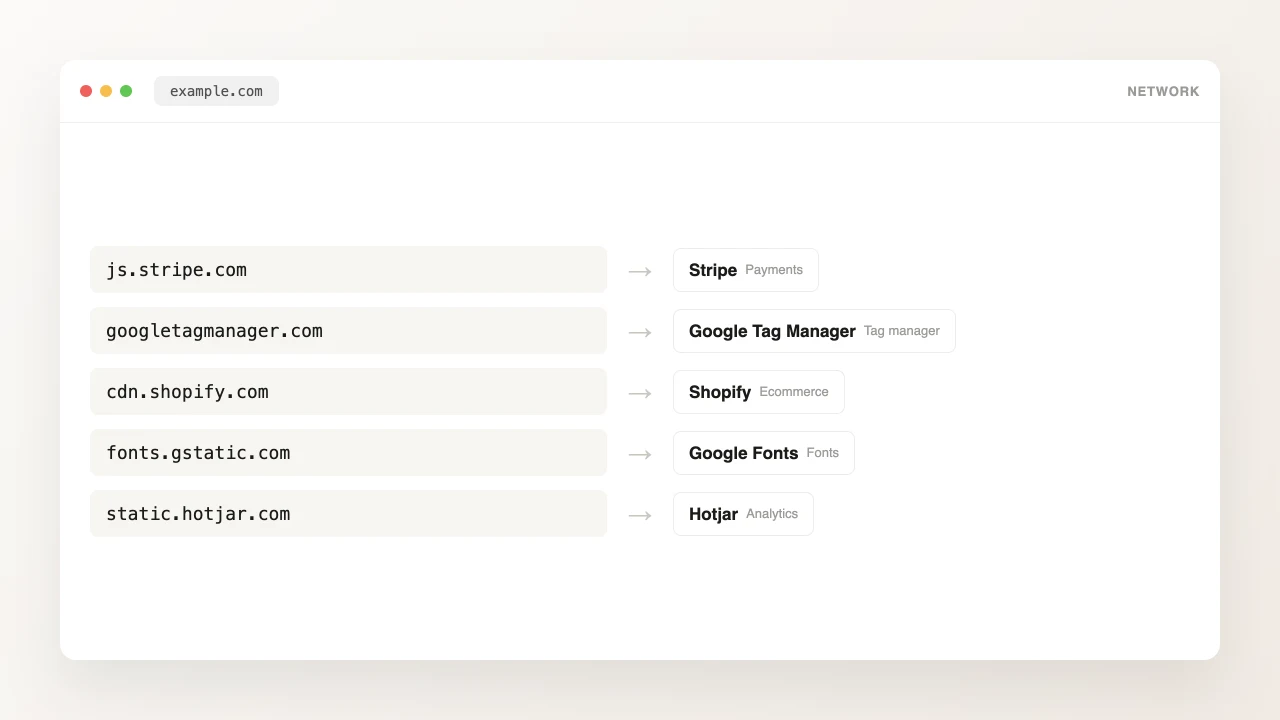
Open developer tools (F12 in Chrome), switch to the Network tab, and reload the page. You will see every request the site makes, and this is where the real stack shows up. The Chrome DevTools network reference is worth a skim if you have not used it before.
Sort by domain and read the hostnames. A call to googletagmanager.com is Google Tag Manager. js.stripe.com is Stripe. cdn.shopify.com is Shopify. Fonts usually come from fonts.gstatic.com. Chat widgets, A/B testing tools, and session recorders all phone home to hosts you start to recognize after seeing them a few times.
Method 3: use a browser extension
A detection extension reads the page you are on and lists the technologies it finds. It renders the page like a normal browser, so it catches frameworks that load late, which the raw source misses. For one-off checks while you browse, nothing is faster.
The limit is built in. It only works on the tab in front of you, one site at a time, by hand. If you need to check fifty sites, or pull a list of every company running a given tool, an extension will not get you there.
Method 4: use a lookup tool or an API
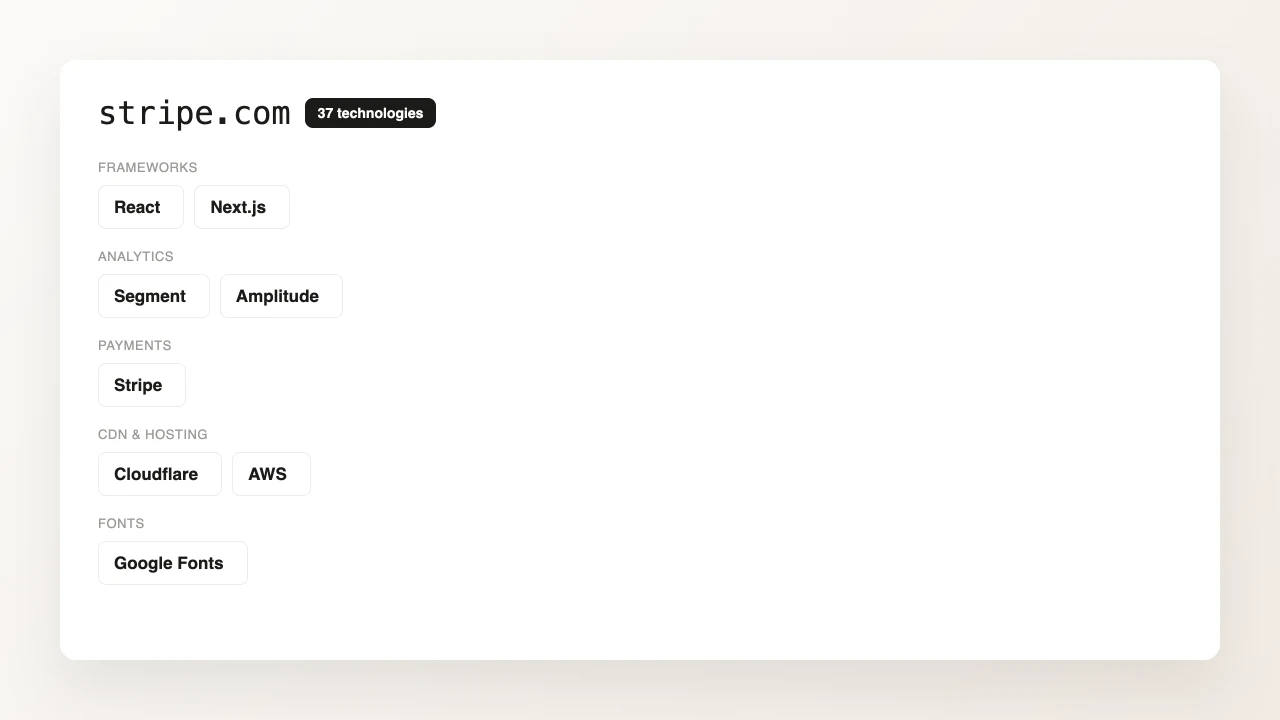
When you need more than a handful of sites, a lookup tool does the inspection for you and hands back a clean answer. You type a domain and get the named stack: framework, CMS, analytics, payments, hosting, grouped by category. StackSherlock works this way, and so do a few other tools.
The payoff shows up once you have a list of domains. An API lets you check thousands of them in a script, and a reverse lookup answers the opposite question: every site running Shopify, or HubSpot, or React. That part is hard to do by hand and easy with an endpoint.
Which method should you use?
- Checking one site, casually: a browser extension.
- Digging into one site properly: the network tab, with a glance at the page source.
- Checking many sites, building a list, or automating: a lookup tool or an API.
If you go the API route, the next thing you will reach for is a list built the other way around: every domain that uses a specific tool. That is a reverse technology lookup, and it is how sales teams turn a tech stack into a prospect list.
Want the stack behind a specific domain?
Look up a domainFAQ
Can you tell what a website is built with for free?
Yes. The browser network tab and most detection extensions are free and work on any public site. Free tools cover one site at a time. Paid tools and APIs are for checking many sites or pulling lists.
How accurate is website technology detection?
It is accurate for tools that leave a clear signal, like analytics, payments, and major frameworks. Detection that renders the page catches more than methods that only read the raw HTML. Nothing is perfect: some tools hide their fingerprints, and a few sites block automated checks.
Can a site hide what it is built with?
Partly. A site can proxy requests through its own domain, strip identifying headers, or self-host scripts to make detection harder. Most sites do not bother, so the common tools stay visible.
What is a reverse technology lookup?
It is the opposite of a normal lookup. Instead of asking what one site runs, you ask which sites run a given tool. Sales and research teams use it to build lists of companies on a specific platform.